Running WinBox in Ubuntu is pretty straight forward and doesn’t really require a tutorial to be honest. I am mainly writing this guide because of a missing dependency in an out of the box Ubuntu installation.You can either follow the enter guide below or just use the step 1 and rest do it your way.
Step 1: Install Dependencies
WinBox requires a shared library libxkbcommon-x11.so.0 which does not come preinstalled with Ubuntu 26.04. You need to install it manually. You can do so by running this command in the terminal:
sudo apt install libxkbcommon-x11-0Step 2: Download WinBox
Download the latest version of WinBox for Linux from mikrotik.com.
Step 3: Extract the Downloaded Package
In your Downloads folder, extract the downloaded zip. I like to copy all the apps to an apps folder in my Home folder, you can do so too if you want.
Step 4: Run WinBox!
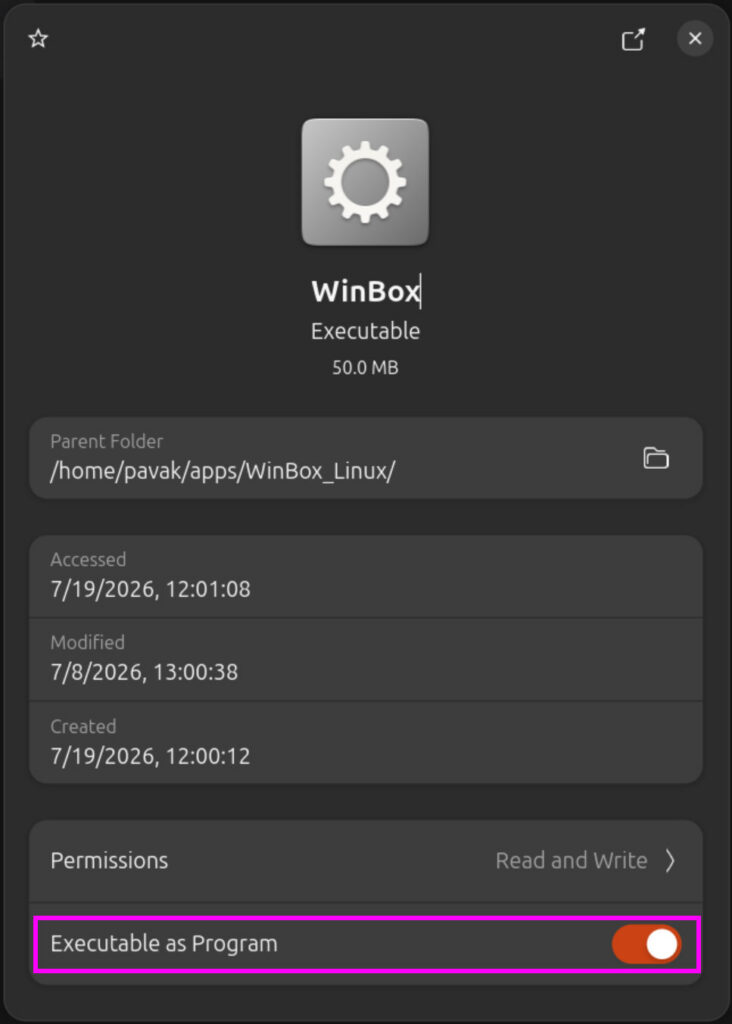
That’s it. Now you can run the WinBox executable. The file should already be executable. If not, you can make sure by going to the properties of the file and make sure it’s executable: